

|
Work OrderEasy to use and powerful! Save time and money while taking your business to the next level! Keep detailed repair info, receive online requests and more! |
Work Order Features Include . . .
|
|
|
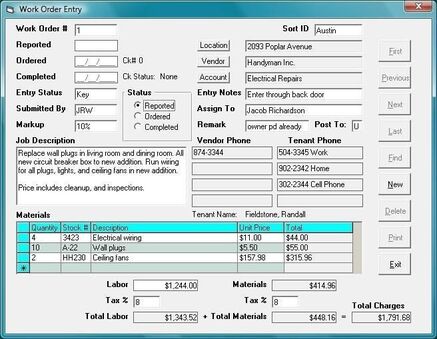
Work Order Entry FormEach Work Order can contain a great deal of information to help you maintain and track your Work Orders more efficiently. Information is automatically retrieved from the Tenant File Program, such as the Location, Vendor, Tenant, and Account Info. An easy to use drop-down lets you select your information quickly.
|
|
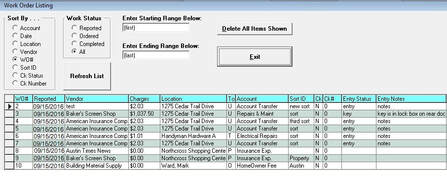
Work Order Listing
This area of the program provides a large degree of flexibility never before seen in Work Order Programs of the past. You have the ability to view and manipulate your data with ease and quickness.
|

|
Work Order Checks
Once Work Orders are completed, you can issue checks. These may be either single checks (one per Work Order) or cumulative checks (one per Vendor).
You may select individual Work Orders for printing, or groups of Work Orders. The ones you select will be transferred into the Tenant File ‘Entered’ Check file to await printing. |

|
Work Order Reports
All reports can be sorted in many helpful ways, and filtered to provide the information you really need.
The Tenant File Work Order Program will pull in information from the main program such as a Vendor list to pick from. Just choose the report you want, select a starting and ending date, the status of the Work Order and you are ready to print. Any report can be printed to screen, to your printer, or to a file. |
|
Work Order Email
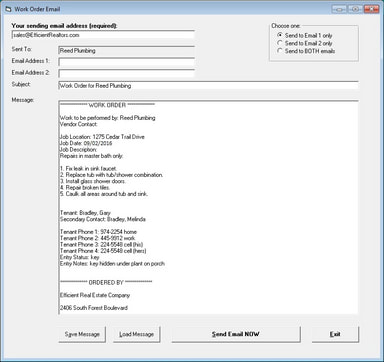
From within each Work Order you can click one button to send a quick email to the Vendor.
This email can be customized and saved for later use. You have the option to send to one email address for the Vendor, or both email addresses. It's quick and easy! When ready, just click the 'Send Email NOW' button. The Tenant File has made is really easy to create and maintain information on the repairs and maintenance of your rental property. |